
To add subtitles on iPhone, import a video into a captioning app, generate text from its spoken audio, review it, and export the captioned video. CapSub gives you that workflow on iPhone and iPad, with editable text and caption styles.
Start with the video you want to share
Use a recording where speech can be heard clearly. If you have several takes, pick the one you want to post before generating captions. Keep the original video so you can return to it later.
Open CapSub and import the video from your photo library. If your footage lives elsewhere, save a local copy first. You can also record a new talking video with the app’s teleprompter.
Generate captions from the spoken audio
The language choice refers to the speech in the recording. Choosing Spanish for an English recording does not translate it into Spanish. If you need a translated version, you will need a separate translation workflow.
- In Settings, leave the language on Auto-detect or select the language spoken in the recording.
- Import your chosen video and run the caption generation flow. Keep an internet connection available for AI transcription.
- Play the preview with its generated captions. Check names, specialist terms, and any moments with overlapping voices.
Make the captions feel like your video
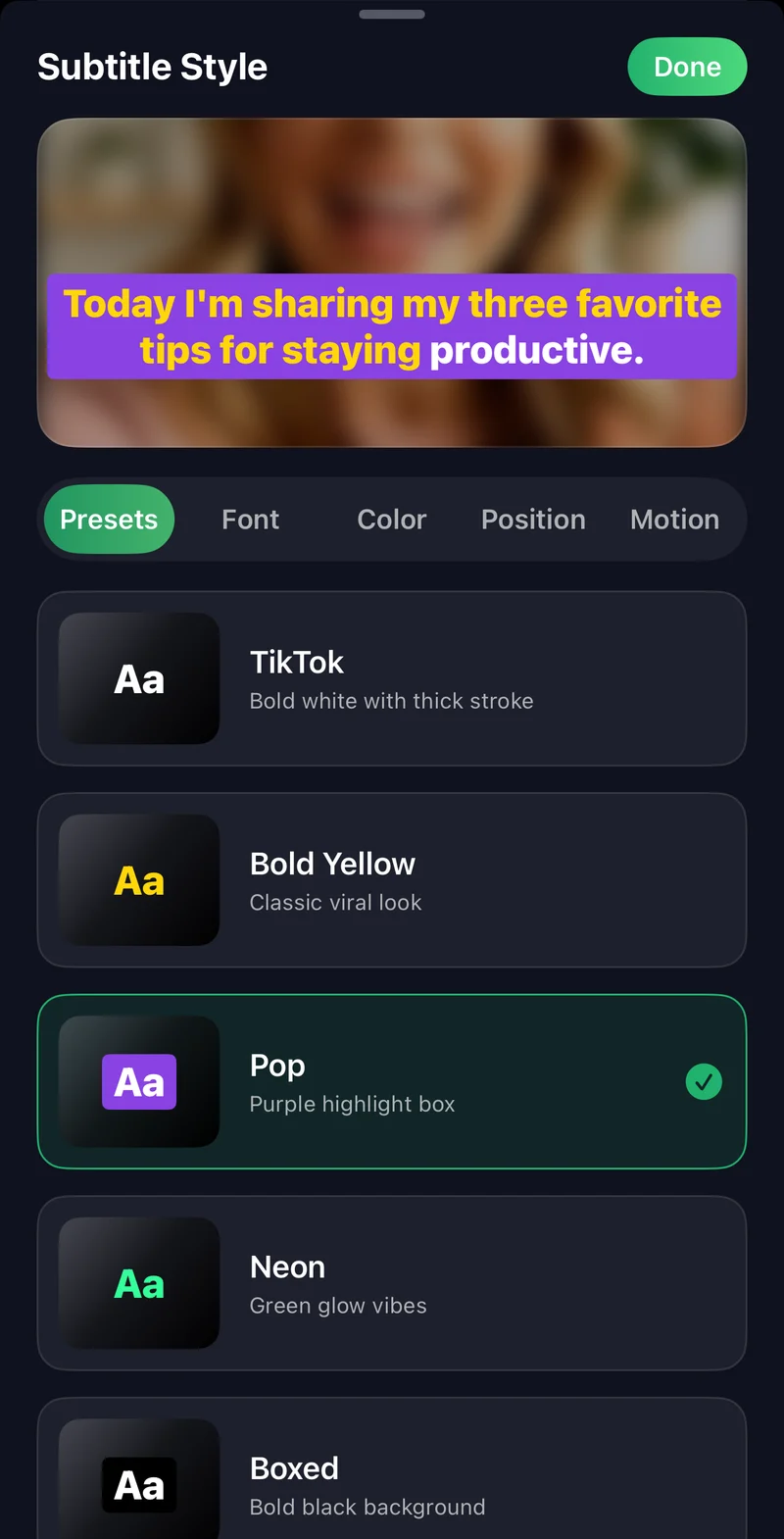
Choose a style that suits the footage: bold text for a busy background, a caption box when contrast changes, or a simple treatment for a quiet scene. Adjust size and position while watching the preview.
Break a long sentence into readable phrases. Avoid placing words over the speaker’s mouth, important demonstrations, or the area where social platforms put buttons. A good check is to watch the clip muted at its normal phone size.
Export the right version
For a video you can post directly, use Export Video. The captions become part of the picture, so viewers do not have to turn on a separate subtitle track.
If another editor or publishing tool asks for a text file, open the subtitle export menu and choose Export SRT File or Export VTT File. Copy Transcript gives you plain text for notes or a written version. Keep the exported video and subtitle file paired with the same original recording.
Before you post
- Watch the beginning, middle, and end of the exported file.
- Check that each caption appears with the matching phrase.
- Preview the upload in its destination app to check overlays.
- Keep your original and final export as separate files.

Put it into practice.
Caption your next video with CapSub on iPhone or iPad.
Get CapSub Free download · Optional in-app purchases