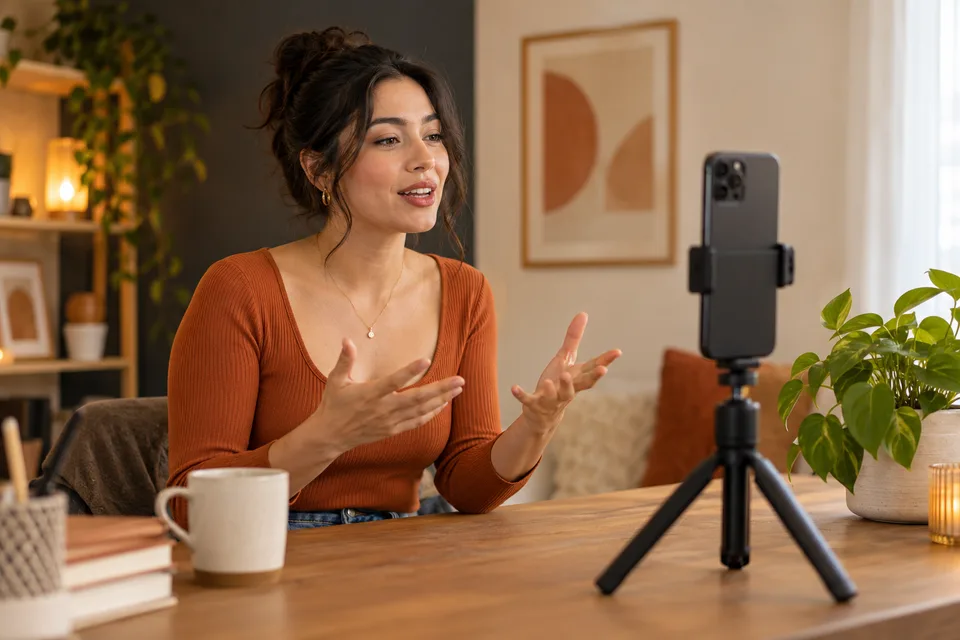
A readable subtitle style depends on contrast, size, line length, and placement together. Start with a simple, clear typeface, then test it over the busiest part of your video at the size your audience will watch.
Begin with clarity
A bold, uncomplicated style is a useful starting point for a small phone screen. Decorative letter shapes can suit a title, but repeated captions need to remain easy to scan as the speaker talks.
There is no single font that is best for every video. A face-to-camera clip, a screen demonstration, and outdoor footage create different backgrounds. Choose the treatment for your actual scene rather than following a font name alone.
Contrast matters as much as the font
White letters can disappear over a white wall; black letters can disappear over dark clothing. A dark caption box or a contrasting outline can keep words distinct as the picture changes.
Test at least two difficult moments: the brightest background and the darkest one. If your style works in one frame but fails in the other, add a background treatment or choose another preset. Avoid judging the entire video from its opening frame.
Use the style preview in CapSub
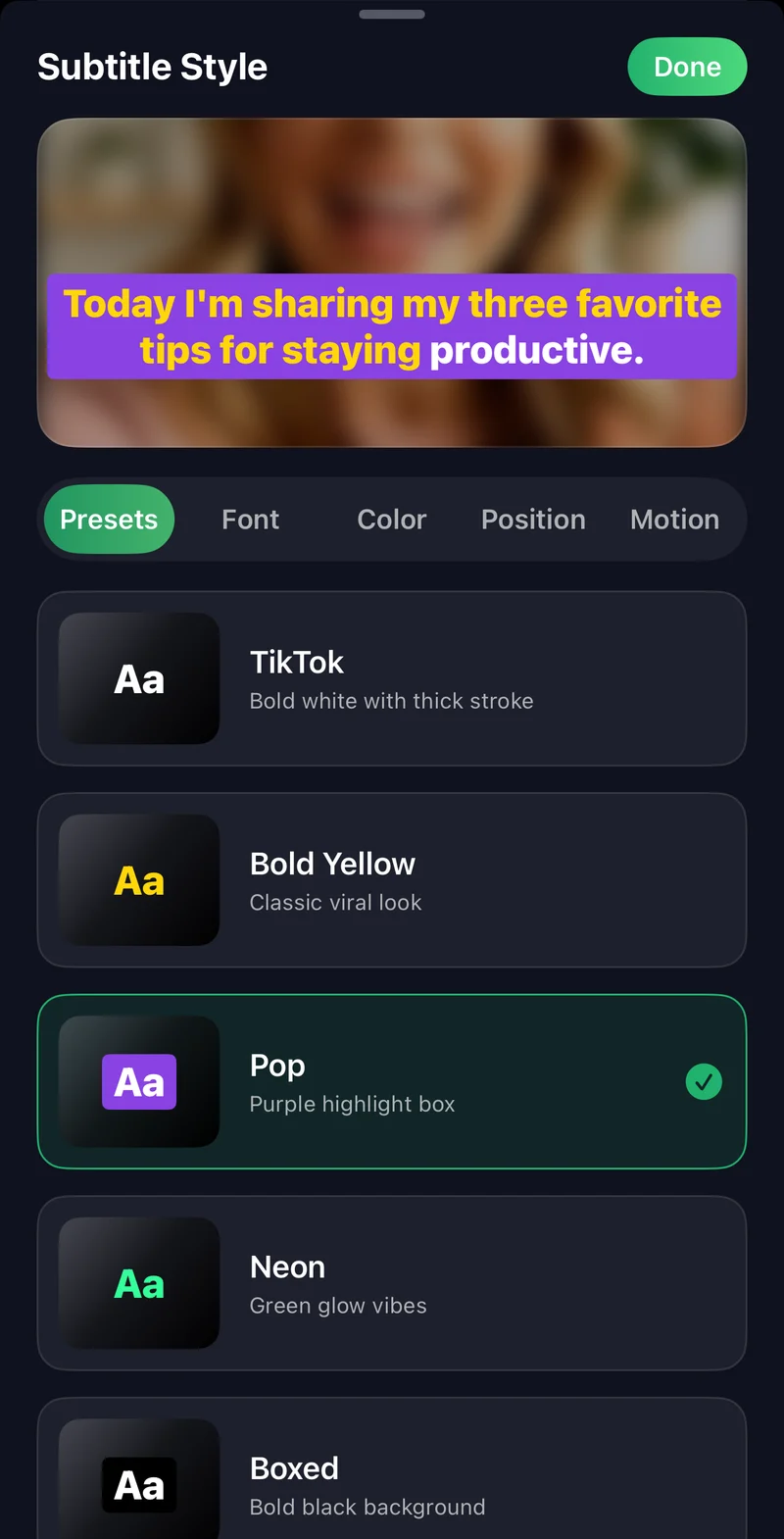
CapSub includes preset treatments such as TikTok, Bold Yellow, Pop, Neon, and Boxed. Choose a preset in the style picker and watch it with your own footage. Adjust the text size and caption position before exporting.
Presets are a starting point. Use highlights to draw attention to a useful word, and leave enough space for the rest of the sentence. The label “TikTok” describes a style option; it does not guarantee platform performance.
Make line breaks help the sentence
For example, “Three things / that helped me focus” is easier to follow than a cramped block of text. The right line length depends on your frame and text size, so review the actual preview rather than applying one character count everywhere.
- Keep a phrase together when possible.
- Avoid a large paragraph covering the subject.
- Leave room around the words rather than filling the entire width.
- Check the caption’s position when the speaker moves.
Run a small-screen check
Watch the exported clip on your phone at its normal viewing size. Do not rely only on a zoomed desktop preview. Read it muted, then watch again with audio to see whether the timing feels natural.
If you need to pause repeatedly, simplify the layout or adjust the timing. If the captions cover important gestures or details, move them. Then preview the platform upload too: its interface can sit over areas that were empty in your editor.

Put it into practice.
Caption your next video with CapSub on iPhone or iPad.
Get CapSub Free download · Optional in-app purchases