
Burned-in subtitles are part of the video picture. They stay visible when the file is played, without a separate subtitle track. In CapSub, generate and style your captions, then use Export Video to create that version.
Embedded captions or a separate file?
Choose embedded captions when you want a consistent visual result in the shared video. This is useful for short talking clips, tutorials, and posts where the viewer should see your chosen style as soon as the video plays.
Choose a separate SRT or VTT file when the destination has its own subtitle-track support and you want viewers to be able to turn that track on or off. The player controls how that track is displayed. Keep an uncaptioned original if you may need another version later.
Create the embedded version in CapSub
A preview in the editor helps you choose the look; the saved file is the final check. Watch a section with a bright background and a section with motion. Make sure the text remains visible and the timing still follows the speaker.
- Import the finished recording.
- Generate captions in the language spoken in the video.
- Review the words and align the timing with the speech.
- Choose a style, text size, and position in the preview.
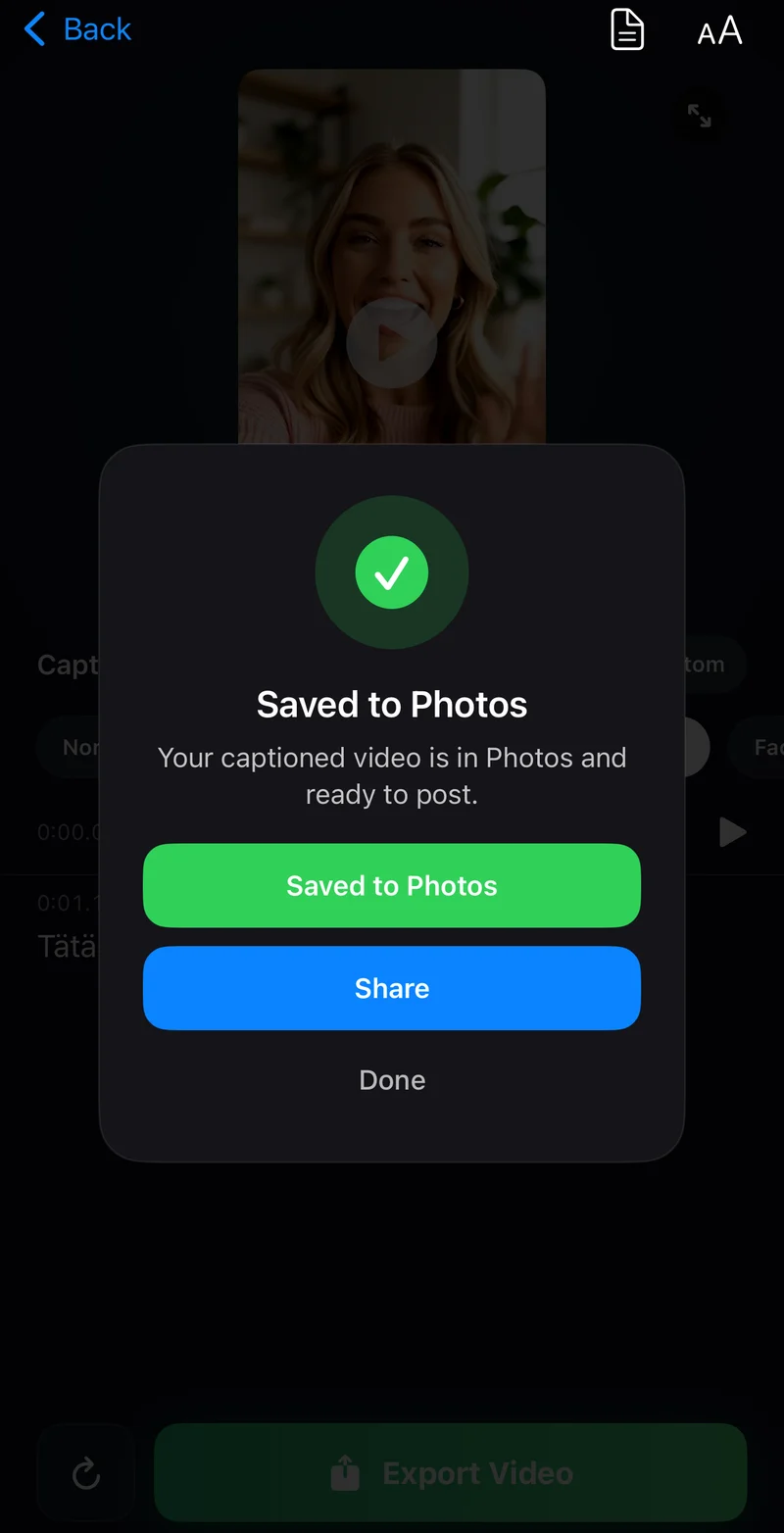
- Tap Export Video and wait for the completed save.
- Play the saved video from Photos to check the actual exported result.
Can viewers turn them off?
When captions are baked into the picture, they cannot be switched off like a subtitle track. A player’s caption toggle controls separate tracks, not text that is already part of the pixels.
For that reason, save the source video alongside the captioned export. If you later need a clean version, a different language, or another style, return to the source and create a new export.
Can you remove embedded captions later?
The original image underneath the words is not preserved as a separate layer in the exported video. Removing the visible words from that finished file is not the same as disabling an editable caption layer.
Return to the original recording rather than expecting a subtitle-file tool to remove baked-in text. If you are handing work to another editor, send the uncaptioned recording and its SRT or VTT file as well as the styled export.
Check the destination before posting
- Preview the video in the platform’s upload screen.
- Keep words away from interface buttons and descriptions.
- Check for a second visible caption layer added by the platform.
- Keep the source, embedded export, and subtitle file clearly named.

Put it into practice.
Caption your next video with CapSub on iPhone or iPad.
Get CapSub Free download · Optional in-app purchases