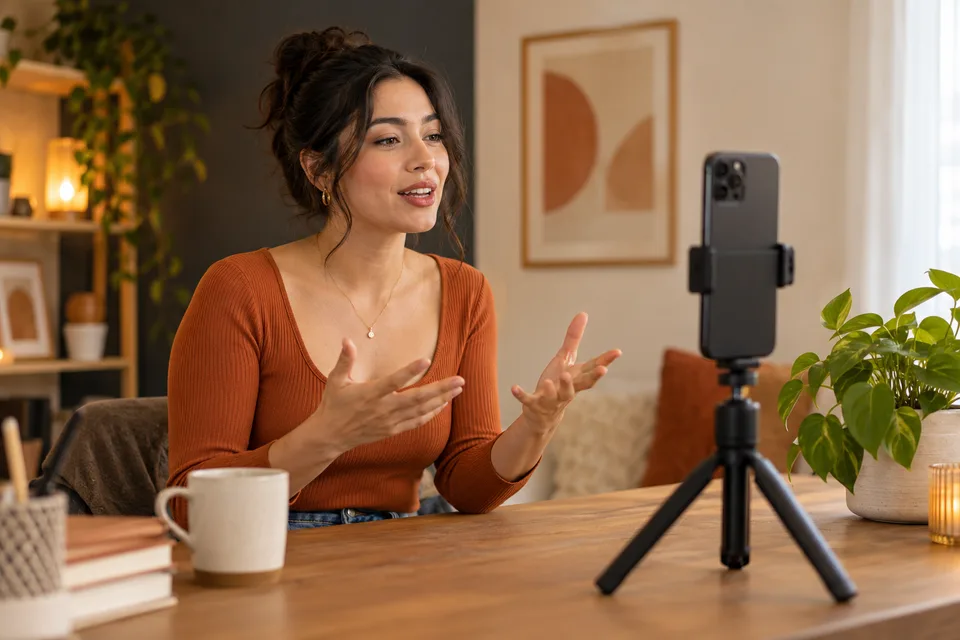
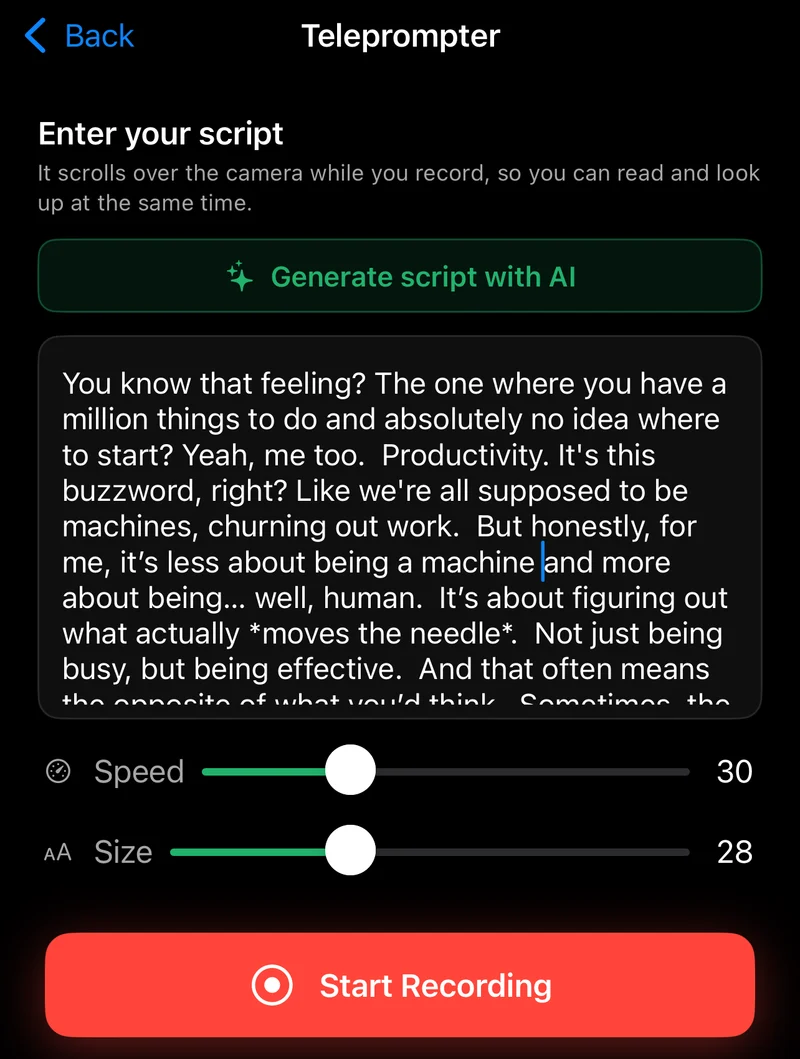
An iPhone teleprompter shows a scrolling script while you record. In CapSub, paste or write your script, adjust Speed and Size, then tap Start Recording. After the take, you can generate captions from the speech in the recording.
Write for your voice
A script that reads well silently can feel awkward aloud. Write short sentences and say them once before recording. Replace words you would never use in conversation. Put your main point early so you do not spend the opening searching for it.
Use line breaks at natural pauses. A recipe, lesson, product explanation, or short update can work well with a script, but you do not need to read every word mechanically. Leave yourself room to breathe between ideas.
Set up the script in CapSub
The script scrolls over the camera view. This is a scrolling teleprompter, not a feature that automatically follows your voice or digitally changes your eyes. Choose a pace you can keep comfortably and record another take if you need to.
- Open the teleprompter and enter or paste your script.
- Use Size to make the text comfortable to read from your recording distance.
- Set Speed, then rehearse a short passage aloud.
- Position the phone securely and check the camera framing.
- Tap Start Recording and read at your natural pace.
Make the delivery feel natural
Place the phone where you can glance at the script without making large head movements. Use a stable stand and keep the microphone area clear. Record a short test to check speech volume and framing before the full take.
If you are rushing to catch up with the text, lower the speed. If you keep waiting for the next line, raise it slightly. A comfortable reading pace is more useful than the fastest setting.
Caption what you actually said
After recording, generate captions from the take. The planned script and the spoken audio may differ: you might skip a line, add an example, or change a phrase.
Use the recorded speech as the basis for captions. Review the result, select a style, and export the captioned video. Do not paste the entire original script into captions without checking timing and what was actually said.
Keep a useful recording routine
CapSub is free to download with optional in-app purchases. Check the current purchase screen for access to recording and captioning features; this guide does not promise an unlimited free teleprompter.
- Save a copy of your script.
- Record a short audio and framing test.
- Choose a scroll speed before the full take.
- Review the captioned export before posting.

Put it into practice.
Caption your next video with CapSub on iPhone or iPad.
Get CapSub Free download · Optional in-app purchases